

A private AI server on a stick
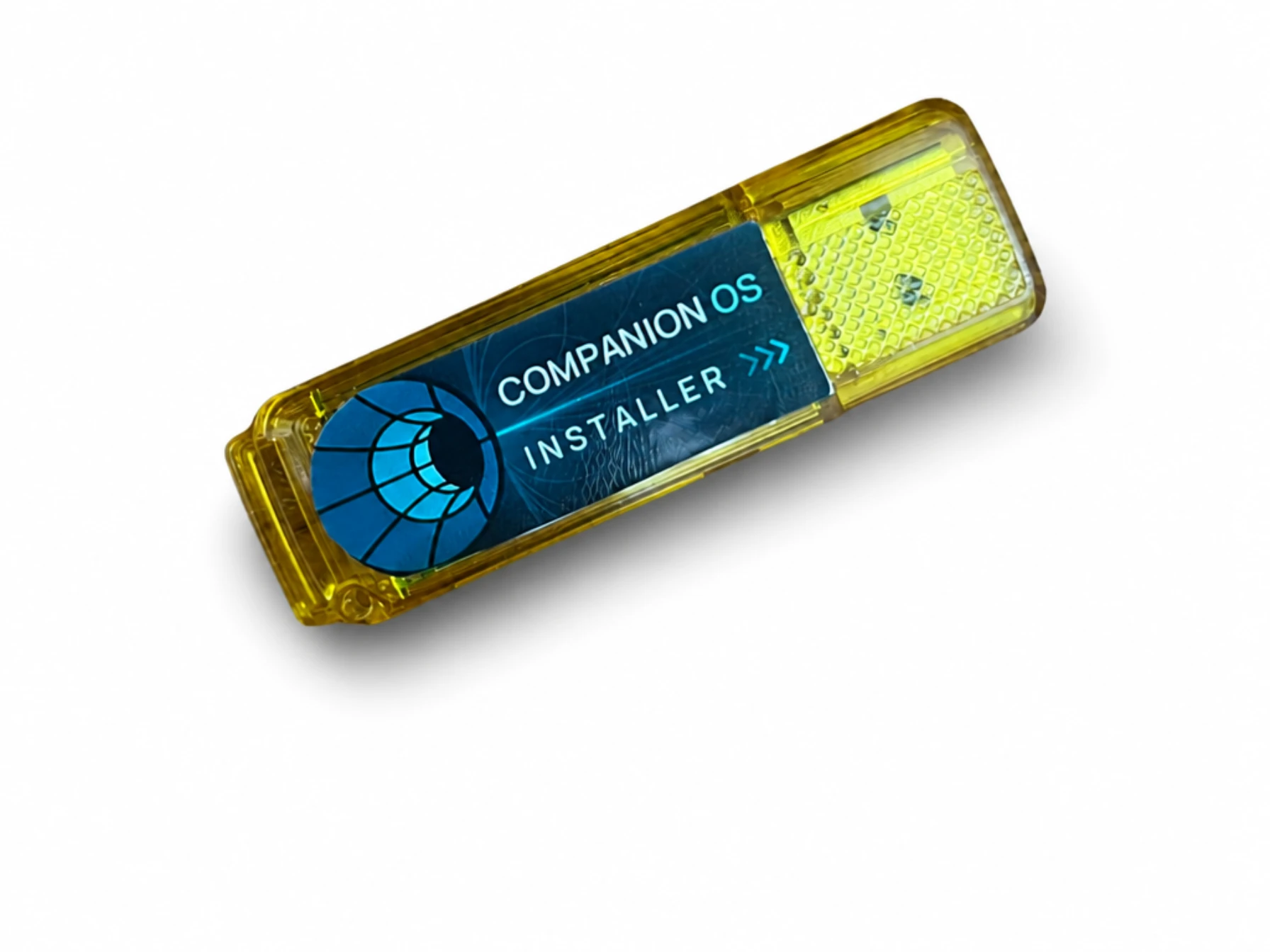
A 128 GB USB 3.1 installer that has everything you need to convert a spare computer into a smart self-hosting device. Includes 2 years of Hub Pro.
$240.00 USD$120.00 USDOn sale. US shipping only.
In production. Read what is built today before you buy.
Status at a glance
Every function below carries one of four labels, so you can see what is built today.
- Built
- Works today.
- Planned
- Not built yet.
- Not yet proven
- Built, but not tested on the target hardware.
- Not supported
- Will not work on that machine.
| Function | Status | Note |
|---|---|---|
| Verify signed bundles | Built | Checks the signature before any hashing. A release key is pinned in this build. No release is signed yet. |
| Flash a stick image | Not yet proven | The dry run prints the plan. The write to a stick has no recorded run on real hardware. |
| Switch slots | Built | ci-stick slot set B switches the active slot. Companion OS has not booted from a slot yet. |
| Host install | Planned | ci-stick install is not provided yet. |
| Signed updater | Planned | Not provided yet. |
| Companion OS slot boot | Not yet proven | A Companion OS image has not booted from a stick slot yet. |
| Secure Boot for Companion OS | Not yet proven | The evidence so far comes from QEMU and OVMF virtual machines, not a real PC. |
| Apple silicon | Not supported | Apple silicon Macs cannot boot the stick. |
What is on the stick
The 128 GB stick holds six partitions. Select a part to see what it holds and what you see when you plug the stick in.
Slice widths are not to scale. Sizes are listed with each part.
CI-EFI
- Purpose
- The bootloader and the A/B pointer. Your PC reads it at boot.
- Size
- 1 GiB
- Filesystem
- vfat
- What Windows or macOS sees
- Used at boot, not as files.
Windows and macOS see CI-SHARED. It holds the launchers, installers and docs. The other partitions hold the boot files, the Companion OS images, the models and live storage.
| Item | Value |
|---|---|
| Partitions | Six: CI-EFI, CI-SHARED, CI-BOOT-A, CI-BOOT-B, CI-CACHE and CI-PERSIST |
| Stick size needed | 57 GiB or more |
| Shared drive | CI-SHARED, 7 GiB, exFAT |
| Models | 21 models in 74.8 GB of 78.4 GB on CI-CACHE |
Sizes come from the 128 GB plan. The write to a stick has no recorded run on real hardware.
How the stack works
Read the layers from the PC’s firmware up to the models. Each layer shows its status label.
Layer 1 of 7
Hardware: x86_64 UEFI PC
Not yet proven
The PC you own. The target is an x86_64 PC with UEFI firmware.
Layer 2 of 7
Secure Boot chain
Not yet proven
Microsoft-signed shim, then Canonical-signed GRUB 2.14 and kernel. The initial RAM disk is not covered by the signature chain.
Layer 3 of 7
Boot menu and A/B slots
Not yet proven
GRUB boots the active slot. ci-stick slot set B switches it. Companion OS has not booted from a slot yet.
Layer 4 of 7
Companion OS
Not yet proven
An Ubuntu 26.04.1 remaster. The image has not booted from a stick slot yet.
Layer 5 of 7
Docker and Ollama
Not yet proven
Docker runs containers. Ollama runs local models. Both ship in Companion OS.
Layer 6 of 7
Companion Hub
Planned
Planned for the stick install. Flashing alone leaves it out.
Layer 7 of 7
Model packs on CI-CACHE
Not yet proven
21 models in 74.8 GB of 78.4 GB. Flashing alone leaves them out.
Flashing alone leaves the models, Companion Hub and Companion Memory out.
How install works
Companion writes each stick before it ships. On the DIY path, seven steps take you from a signed bundle to a first start. Open a step to see its detail. Writing the stick runs on Linux.
The bundle comes with a detached ed25519 signature.
Keep the bundle and its signature together. The next step checks one against the other.
The signature is checked before anything is hashed.
ci-stick checks the signature first, then the expiry and the rollback floor, then the size and SHA-256 of each artifact. A failed check stops the run. A release key is pinned in this build. A key you give with --pubkey counts only with --development-key, and the tool warns that it is a development key.
flash --dry-run prints the plan. It writes nothing.
Read the plan before you write. It includes the Secure Boot line, so you see the boot chain first.
On Linux, flash --device needs --confirm with the device node.
The tool reads the stick back after it writes. The write path has no recorded run on real hardware.
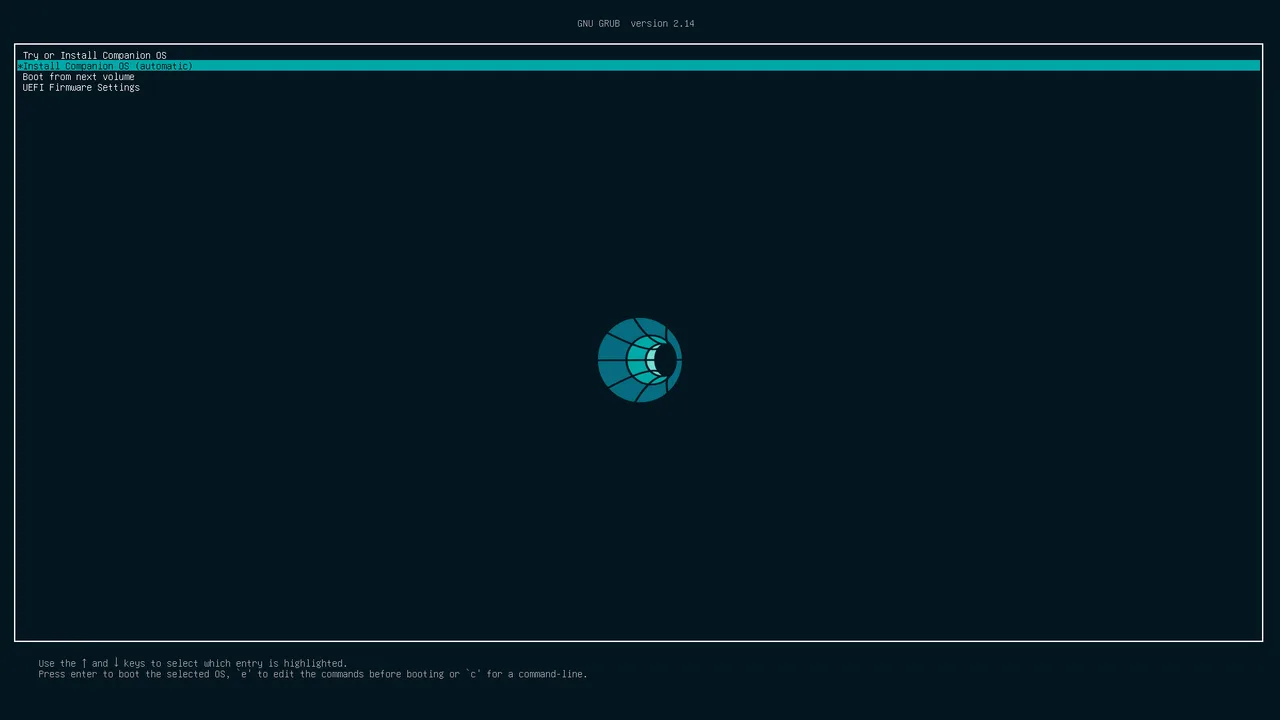
Start the PC from the stick in its boot menu.
Stock Ubuntu 26.04.1 reached its early boot from a slot with Secure Boot on, in QEMU. Companion OS has not booted from a slot yet. No real PC has been tried.
ci-stick slot set B switches the active slot.
GRUB boots the active slot. CI-BOOT-A holds the Companion OS image, and CI-BOOT-B is the update slot.
The first sign-in, then the Companion Hub pairing page.
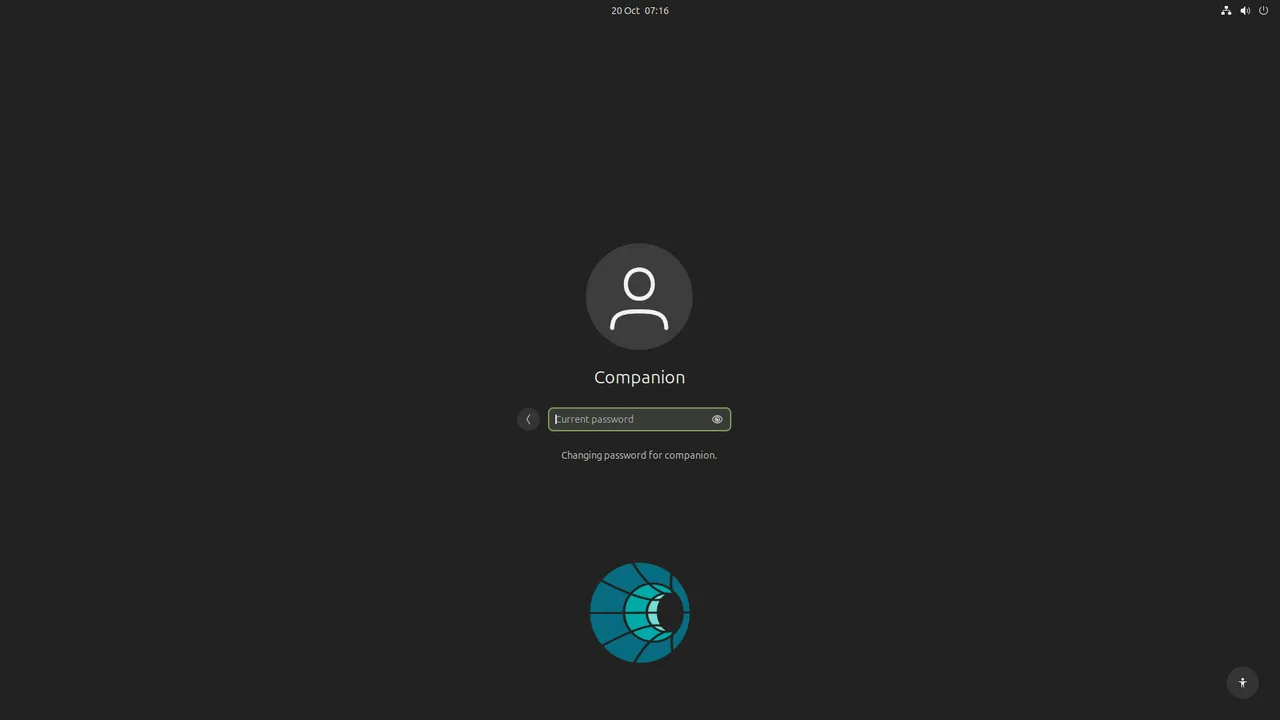
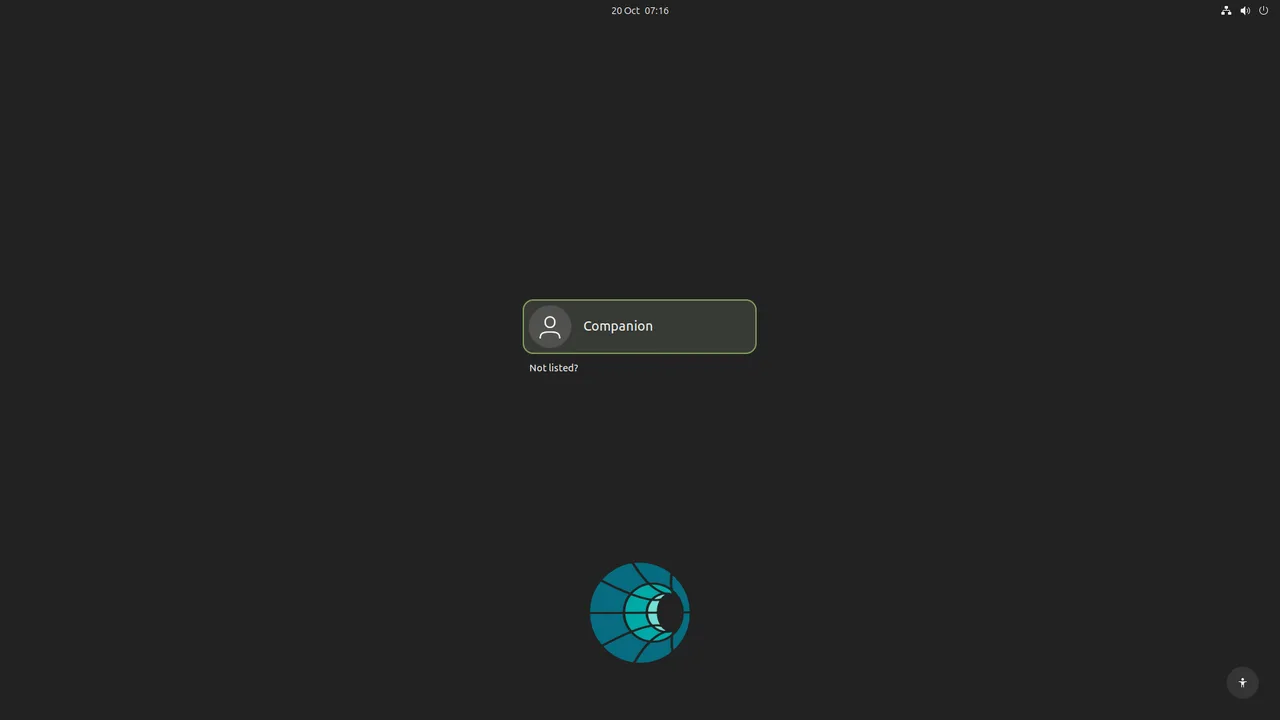
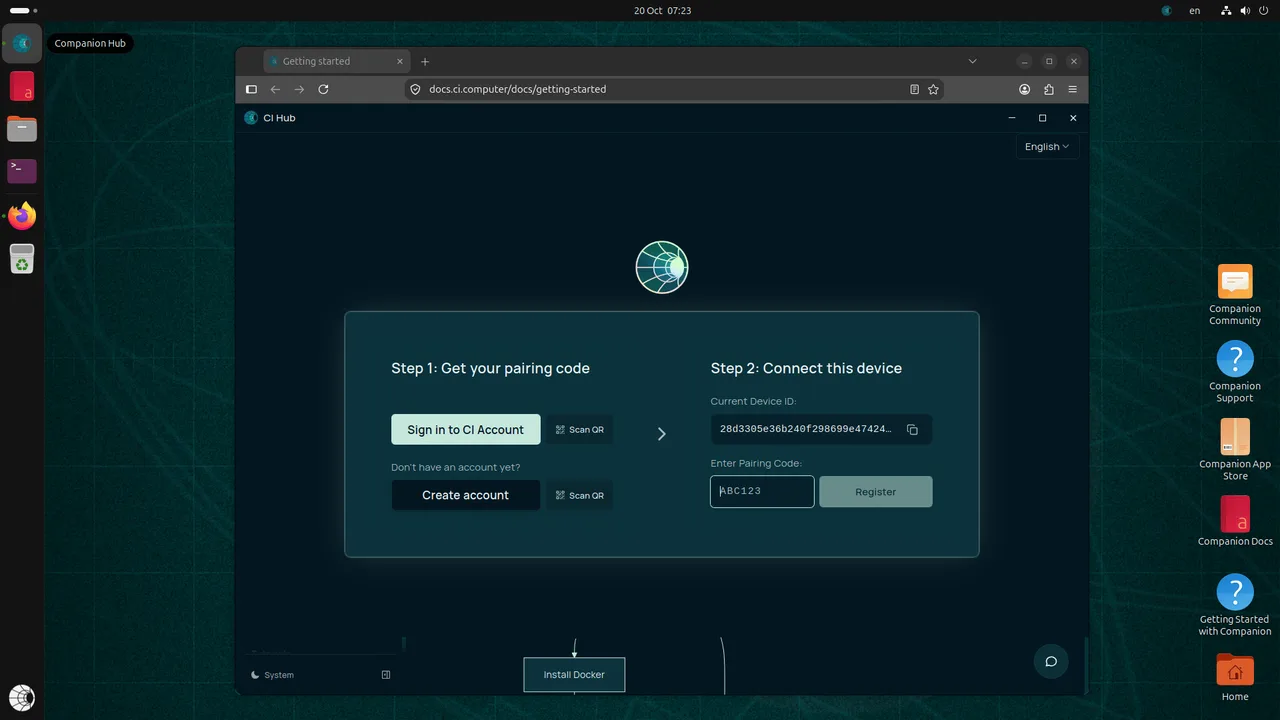
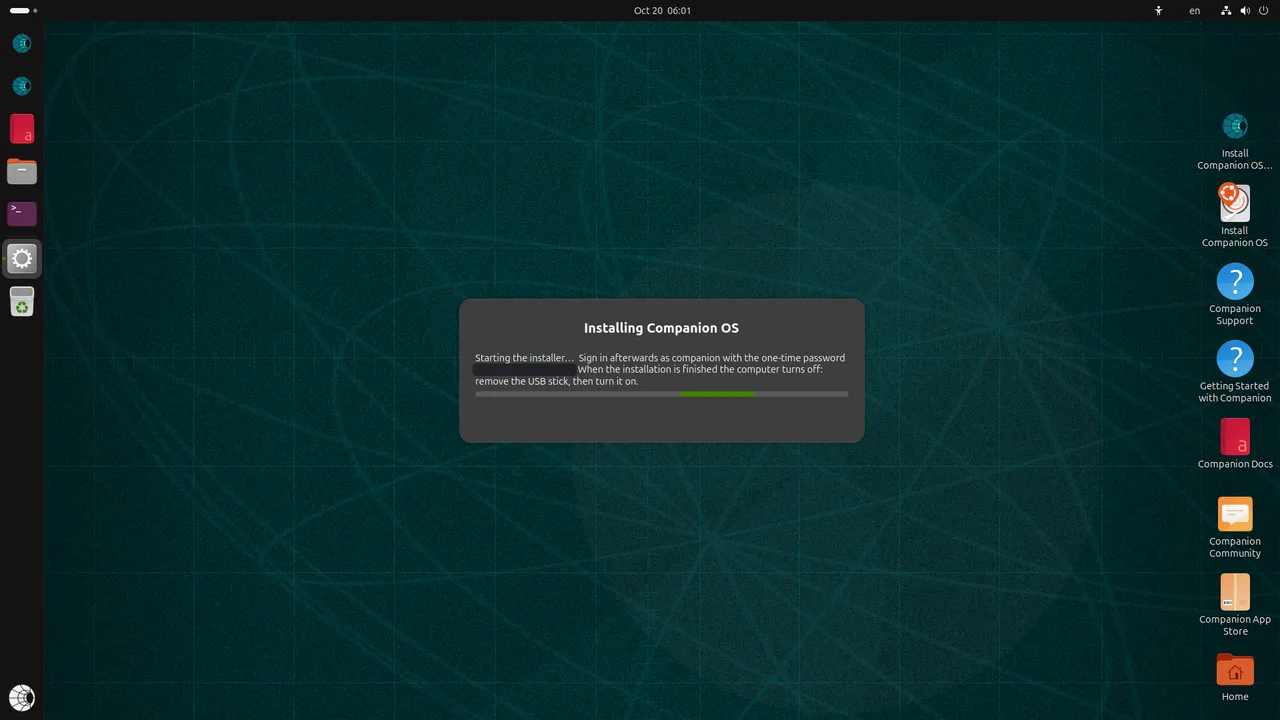
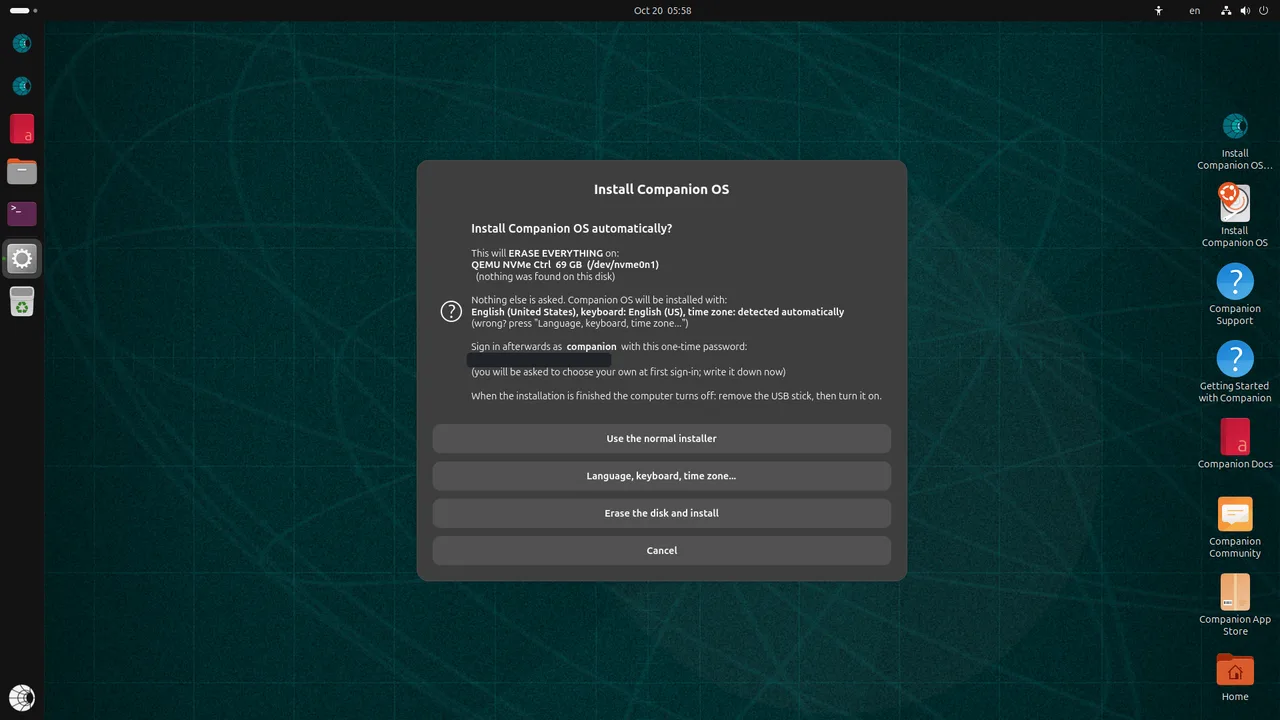
In the virtual machine test, the first start showed the sign-in screen, asked for a new password, and opened Companion Hub at its pairing page. This has not been run on a stick.
What you see on screen
On the DIY path, the verify and flash commands print trust lines. These four cover the signature and the boot chain.
| Message | What it means |
|---|---|
| Signature valid | The bundle’s detached ed25519 signature checks out against a trusted key. The check runs before any artifact is hashed. |
| Trusted | The manifest is trusted. That needs a key the tool trusts: the release key this build pins, or a development key you give with --pubkey and --development-key. No release has been signed with the pinned key yet. |
| Secure Boot supported | The bundle carries the signed boot chain: Microsoft-signed shim, then Canonical-signed GRUB. It does not show that Companion OS boots from a slot. |
| Secure Boot NOT supported | The bundle uses the unsigned development GRUB. Turn Secure Boot off in your PC’s firmware settings to boot this stick. |
Your computer
Check the table before you buy. No real PC has booted the stick yet, so the x86_64 results come from virtual machines.
| Computer | Boot from the stick | Note |
|---|---|---|
| Windows or Linux PC with x86_64 UEFI | Not yet proven | Stock Ubuntu 26.04.1 reached its early boot from a slot in QEMU, with Secure Boot on. A real PC has not been tried. Companion OS has not booted from a slot. |
| Intel Mac with a T2 chip | Not yet proven | Set Startup Security to No Security and allow external boot. Not tested on a real stick. |
| Apple silicon Mac | Not supported | Apple silicon cannot boot the stick. |
| arm64 PC | Not supported | arm64 cannot boot the stick. |
| CachyOS | Not supported | CachyOS cannot boot the stick. |
Walk through the install
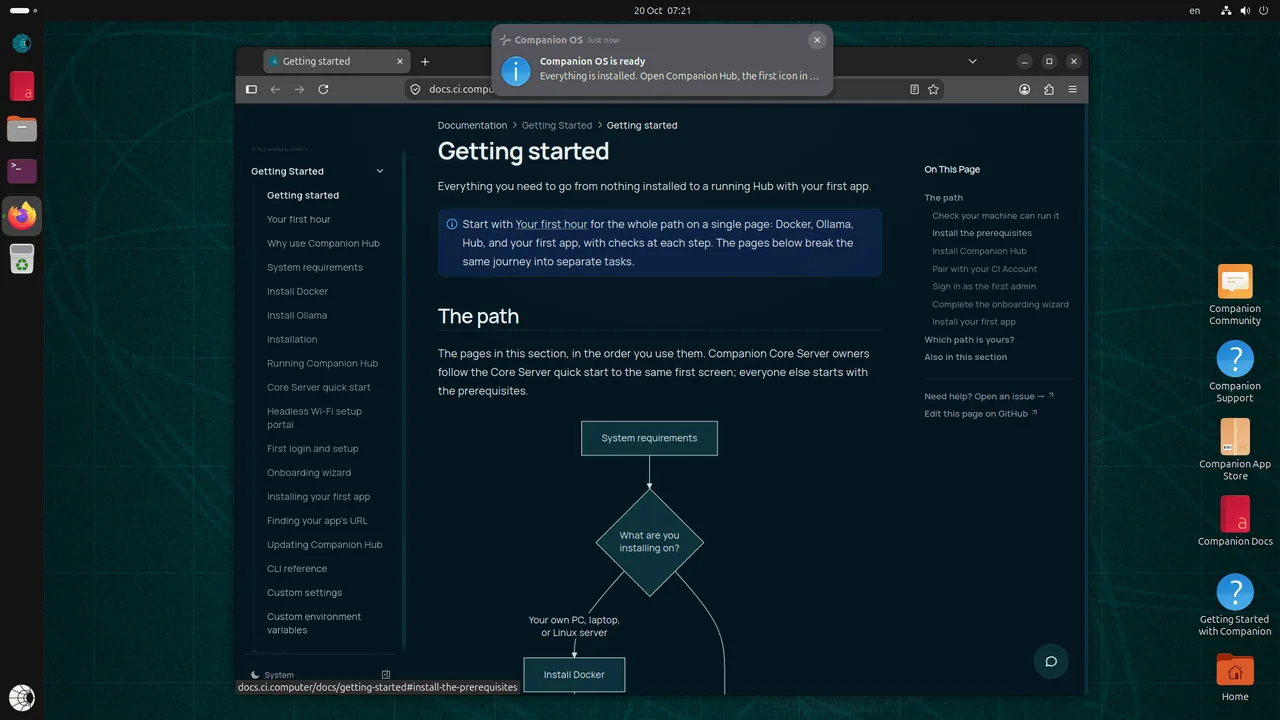
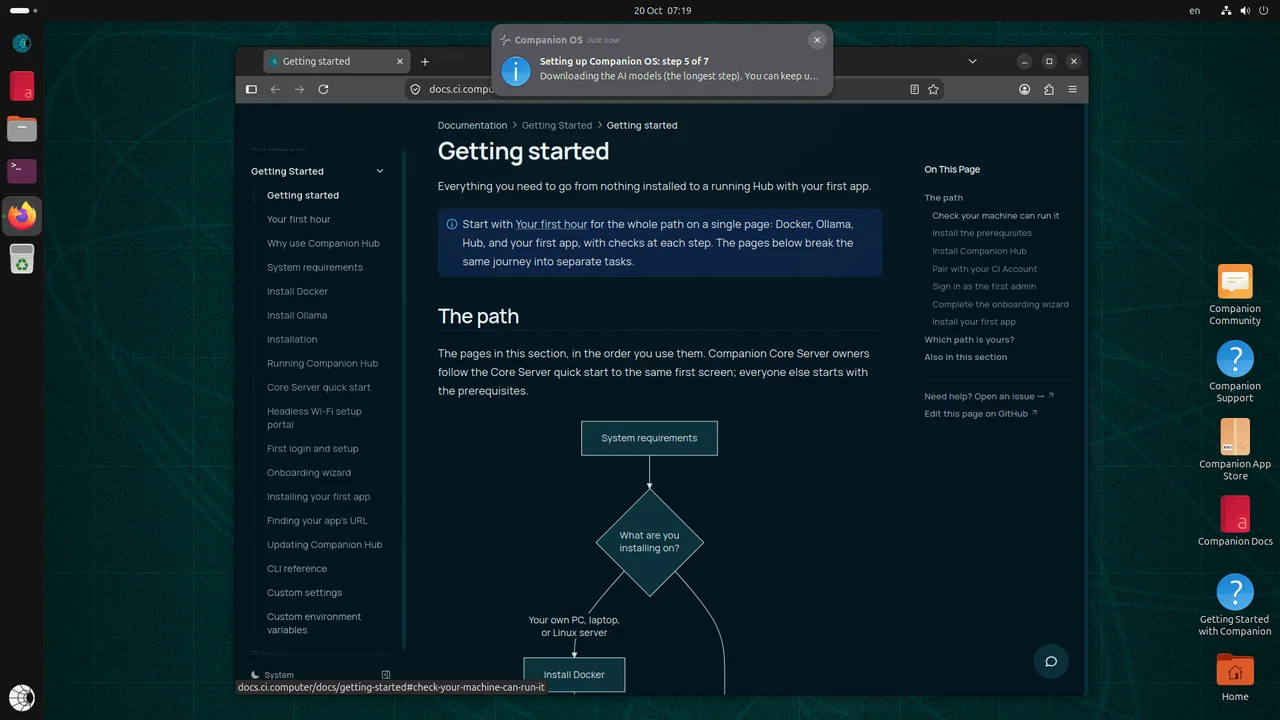
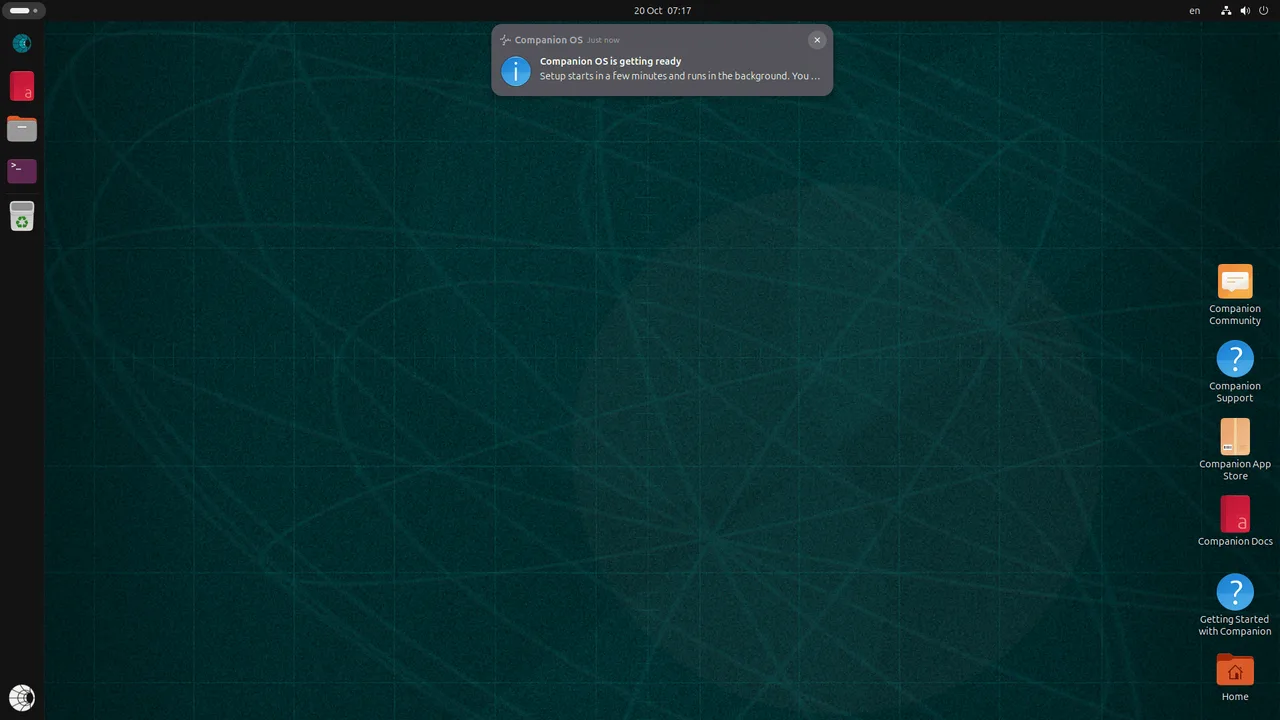
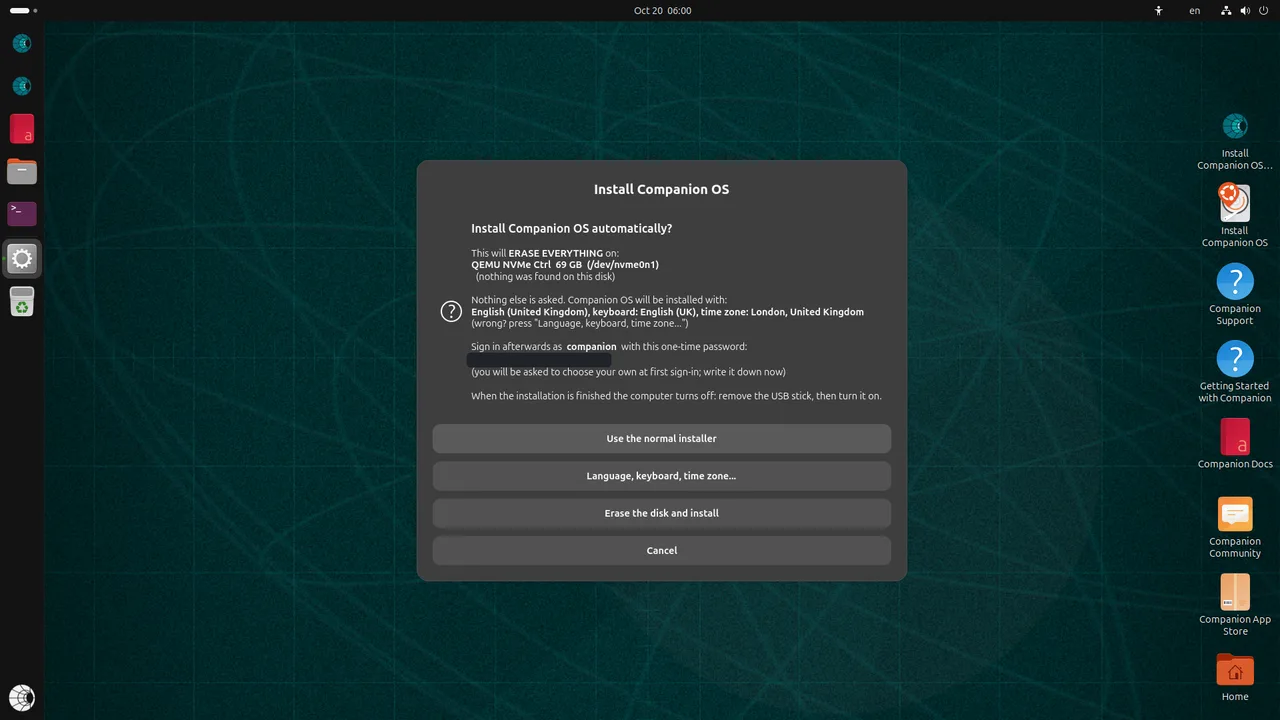
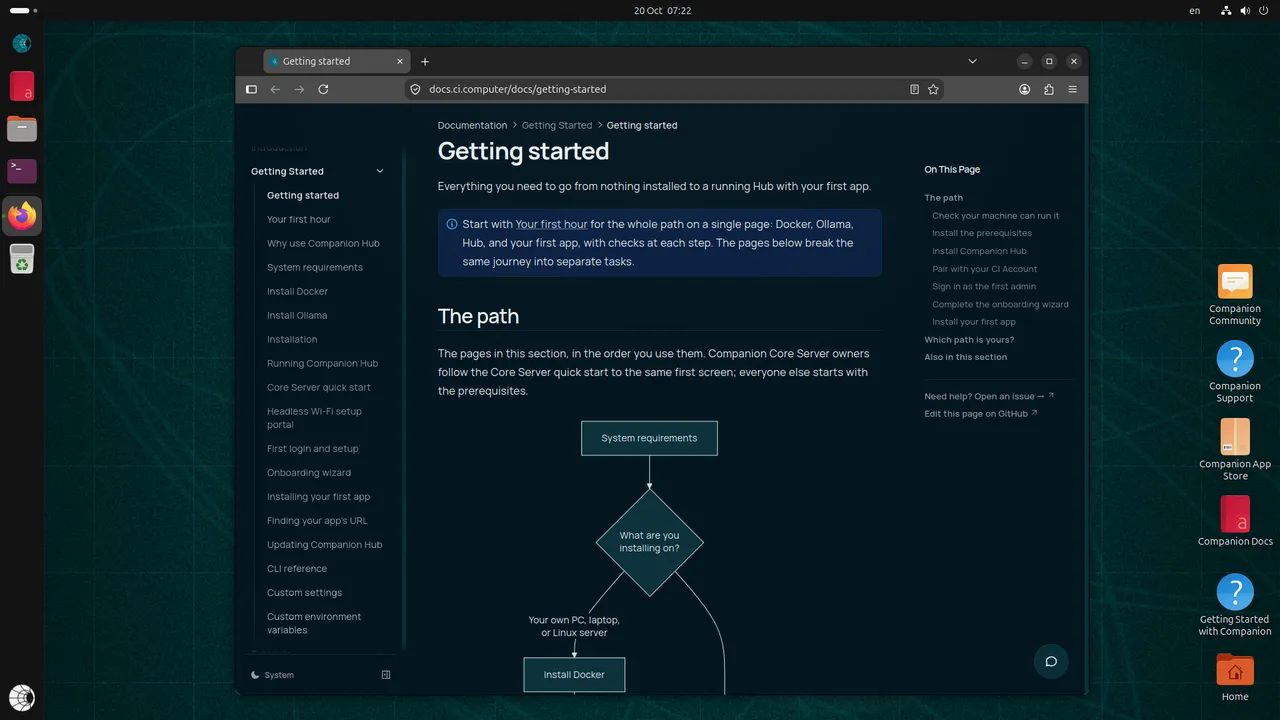
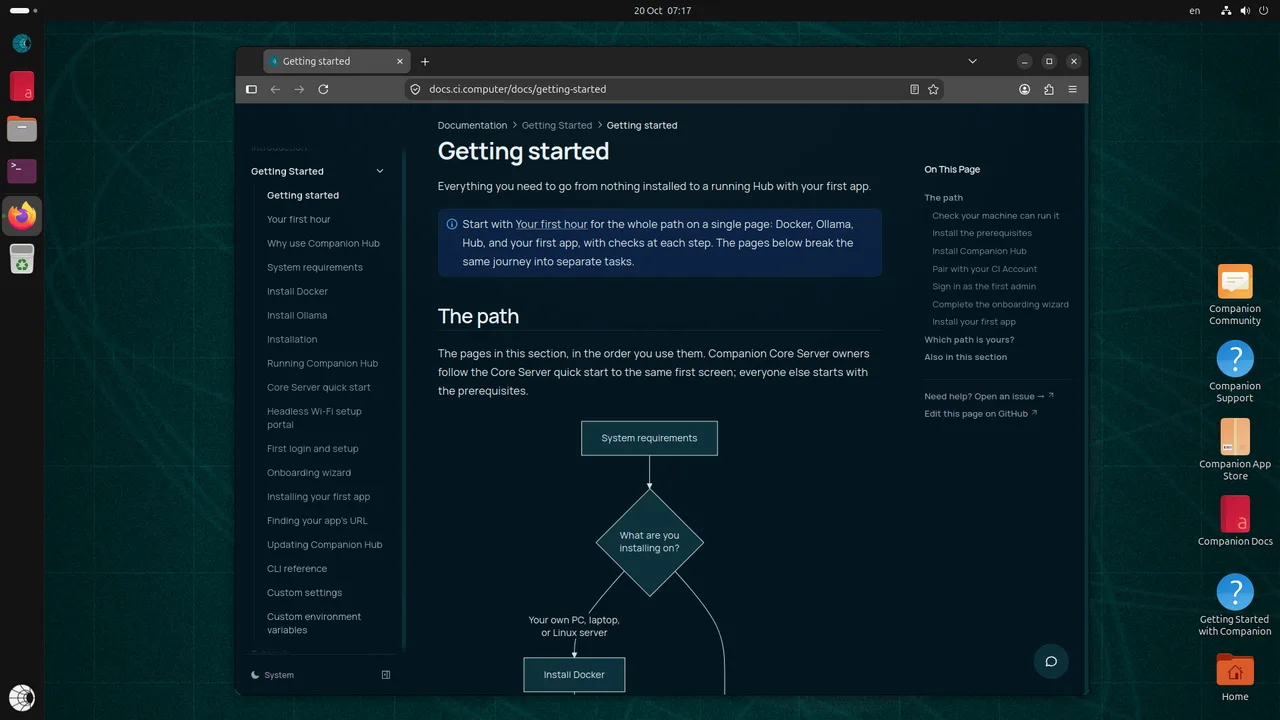
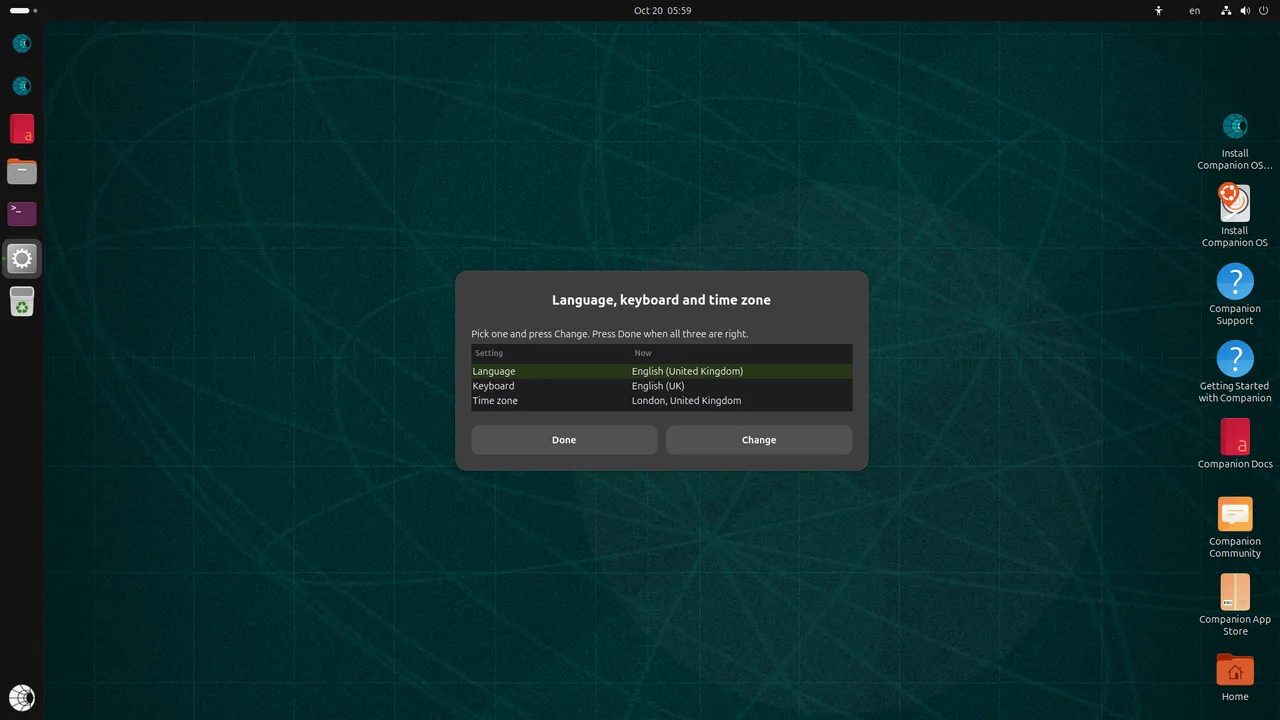
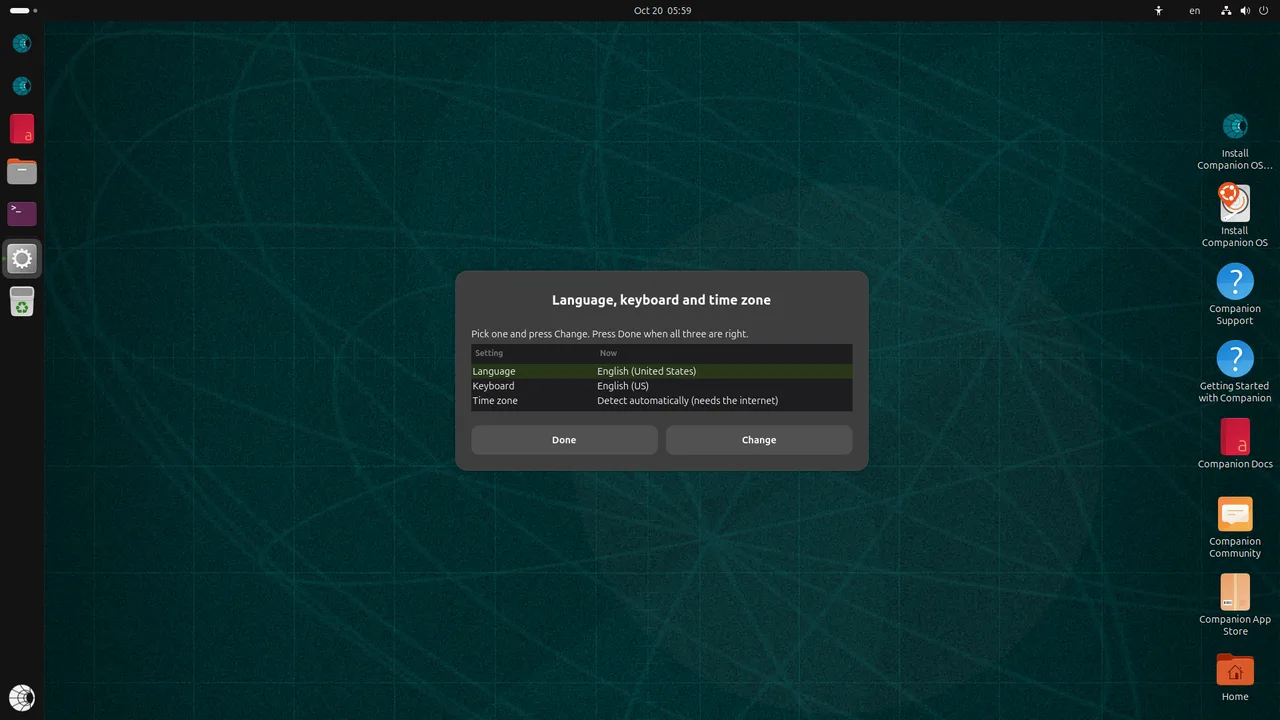
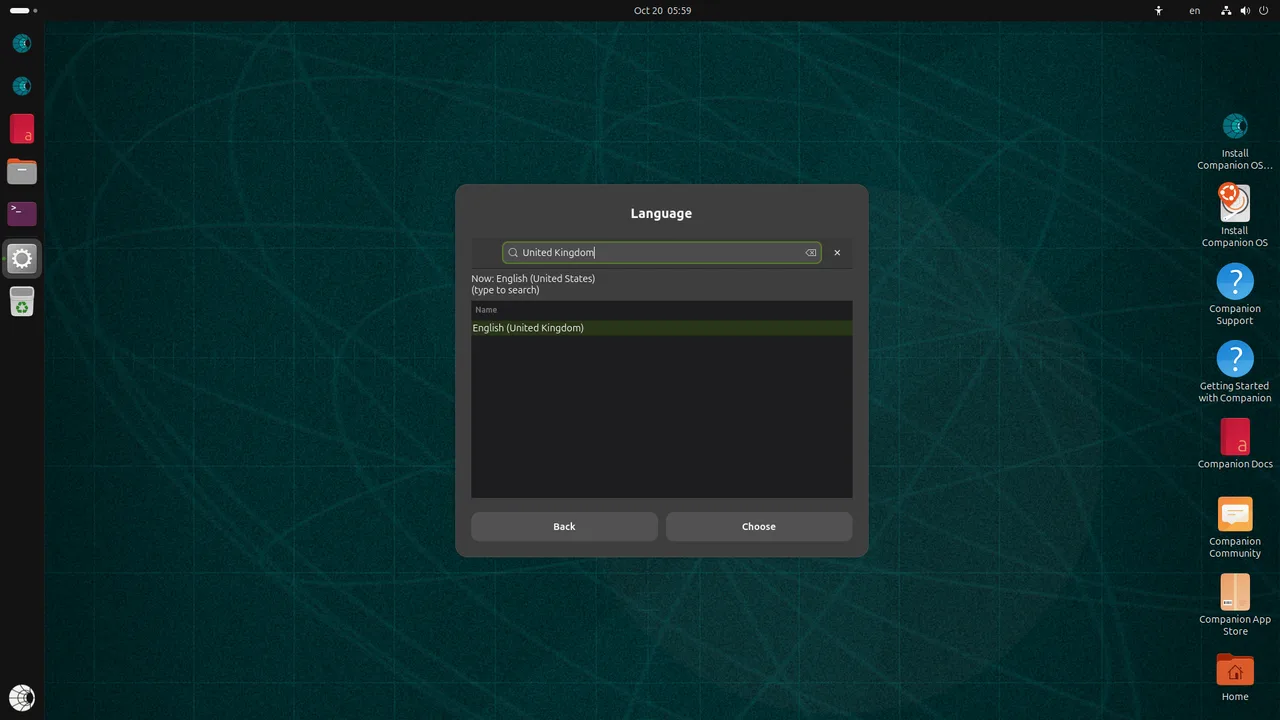
These are first-run screens from a test build of Companion OS, run in a virtual machine on an Apple silicon Mac. Step through them in order.
Specs
| Item | Value |
|---|---|
| Capacity | 128 GB |
| Plan | The 128 GB plan: six partitions, described above |
| Interface | USB 3.1 |
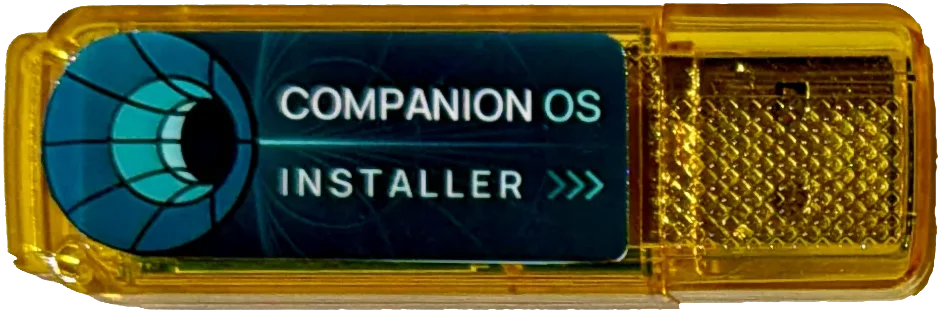
| Operating system | Companion OS, an Ubuntu 26.04.1 remaster |
| Included software | Docker, Ollama and Companion Hub |
| Models | 21 models on CI-CACHE |
| Boot status | Not yet proven. Companion OS has not booted from a slot yet. |
| In the box | The stick and its cap |
| DIY write time | Estimated at about one hour. Not measured. |
| Shipping | United States only |
The DIY write time is an estimate. A test build on a Mac took 10 to 30 minutes.
Compare the options
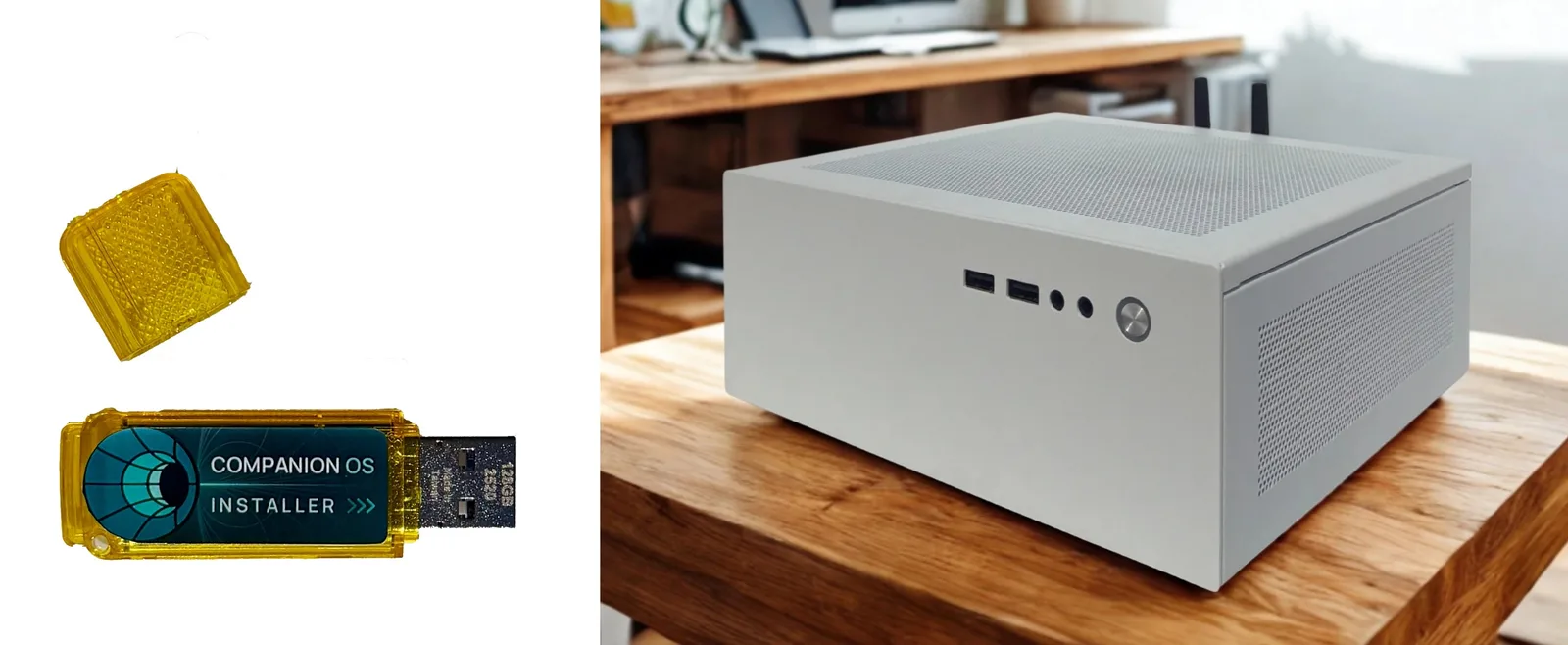
Companion Core 128 is ready-made hardware. Companion writes each stick before it ships, and you boot a PC you own.
| Item | Server on a stick | Companion Core 128 | The DIY path |
|---|---|---|---|
| What you pay | See the Core 128 page. | A USB stick of 57 GiB or more, plus your time. | |
| What you get | A 128 GB stick with six partitions, Companion OS, 21 models, and 2 years of Hub Pro. | Ready-made hardware. | The same signed bundle, on a stick you choose. |
| What you do yourself | Boot your PC from the stick and switch slots. Companion writes the stick before it ships. | Nothing to write. The stick steps do not apply. | Verify the bundle, write the stick on Linux, boot your PC from it and switch slots, on a stick you supply. |
| Status today | In production. Built: verify, dry run and slot switch. Not yet proven: the write and Companion OS boot. | See the Core 128 page. | The same as the stick. |
Frequently asked questions
Do I need a Mac?
No. The stick is for an x86_64 PC with UEFI firmware. Apple silicon Macs cannot boot it. An Intel Mac with a T2 chip needs Startup Security set to No Security and external boot allowed. That path is not yet proven.
Is it safe?
The signature check is built, and the tool stops when a check fails. A release key is pinned in this build, but no release has been signed with it yet. The write to a stick has no recorded run on real hardware, and Secure Boot for Companion OS is not yet proven.
Can I update it?
Not yet. The signed updater is planned and is not provided yet. CI-BOOT-B is the update slot on the stick.
What about my data?
Your models live on CI-CACHE. The live system has writable storage on CI-PERSIST. Writing a new image replaces what is on the stick, so copy anything you need off it first.
What is not built yet?
Planned: host install (ci-stick install) and the signed updater. A release key is pinned in this build, but no release has been signed with it yet. Not yet proven: a physical flash test, Companion OS booting from a slot, and Companion OS Secure Boot.
How long does it take?
Companion writes each stick before it ships. On the DIY path, writing a 128 GB stick is estimated at about one hour. That figure is an estimate, not a measurement. A test build on a Mac took 10 to 30 minutes.
Can I sell or give it away?
This page does not cover resale or transfer. Read the terms of service linked in the site footer before you sell or give the stick away.
How we know
Each status on this page comes from the documentation for the stick.
- Planned: a stick status page on docs.ci.computer, at getting-started/companion-stick. It is not published yet.
- We update this page when a status changes.
Buy the stick
Server on a stick costs $120.00 USD (was $240.00 USD). It ships within the United States only.
Before you buy, read Status at a glance. The write to a stick and the Companion OS boot are not yet proven.